

Almost everyone does the same thing first: wipe it. When the dot doesn’t move, the questions start. Is it broken? Is it normal? Is it enough to send the laptop back?
Here’s how to tell what you’re looking at, and what’s worth doing while the return window is still open.
A screen is a grid of tiny lamps
Each pixel on your display is made of three subpixels: red, green, and blue. Mixing their brightness produces every color you see. When one of them stops behaving, you get a dot.
A dead pixel gets no power at all. It stays black no matter what’s on screen. You’ll spot it instantly on a white background and barely at all on a black one.
A stuck pixel is jammed at one value. It’s always red, always green, always white (whatever its stuck subpixels add up to). If something glows on an otherwise black screen, that’s a stuck pixel.
Dust or a smudge isn’t a pixel problem at all. It shifts slightly as you change your viewing angle, or casts a faint shadow on the surface. A microfiber cloth often deals with it.
The distinction matters because the responses differ. A dead pixel is not something you can fix. A stuck pixel sometimes unsticks. Dust was never a fault.
Working it out
The reliable method is filling the whole screen with one flat color at a time and watching the same spot: white, gray, black, red, green, blue.
- Black dot that only appears on white → dead pixel
- Bright dot that only appears on black → stuck pixel, and its color tells you which subpixels are jammed
- Shadowy mark visible on every color → probably dust or debris
The dead pixel test linked above cycles those six colors in fullscreen. Dim the room a little first. Reflections of your face and the window behind you hide exactly the kind of small dot you’re hunting for.
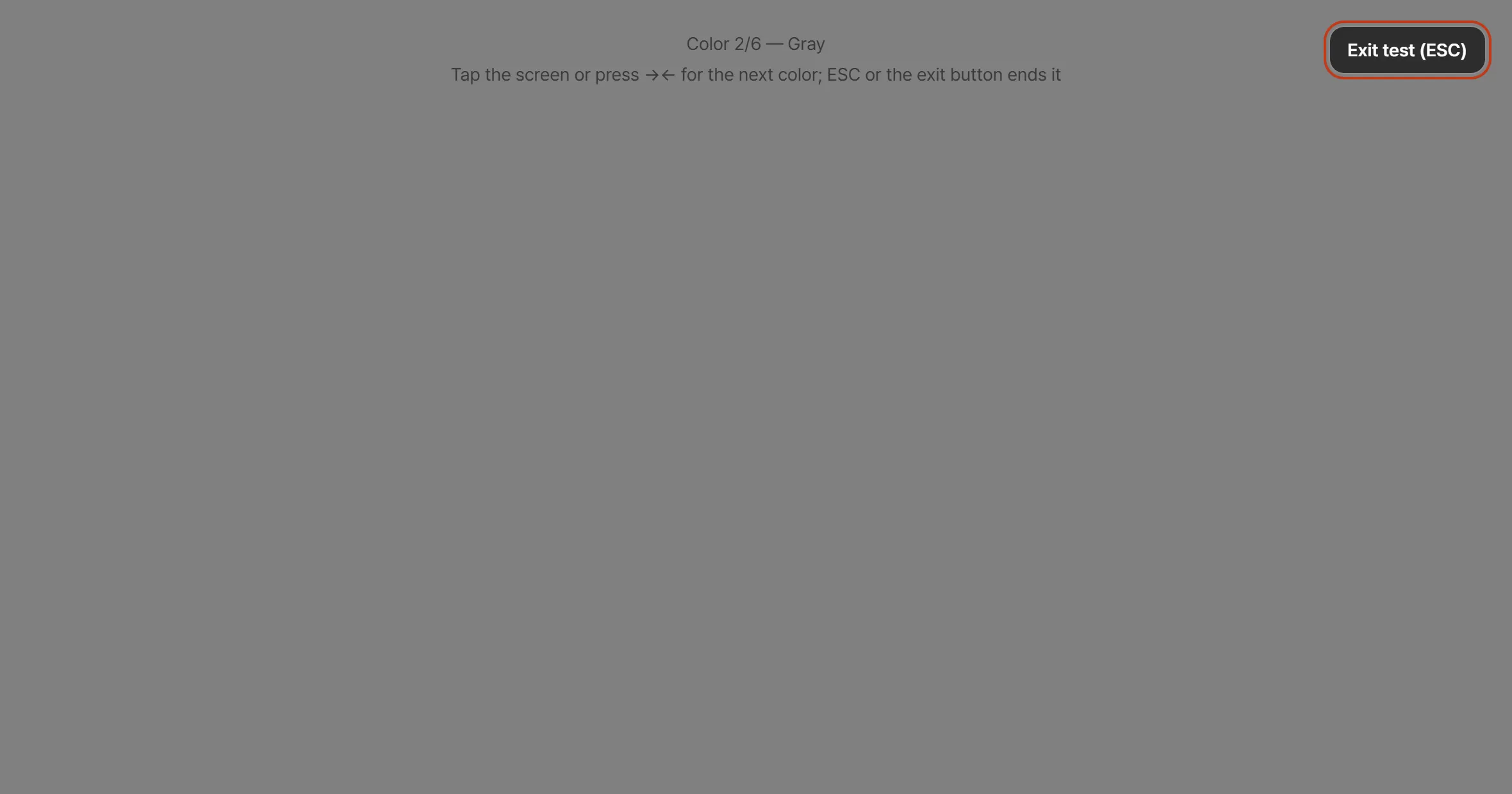
During the test the screen holds one flat color like this. The line at the top says which color you’re on, tapping moves to the next, and Escape or the button in the corner gets you out.
While you’re there, look at the whole panel
Flat colors catch more than single-pixel faults.
On white and gray, you’re checking uniformity. Watch for a corner that reads yellow, a middle that’s noticeably brighter, or a dark patch shaped like something pressed against the panel. Those are uniformity problems, and gray shows them better than white does.
On black, you’re looking for backlight bleed: light leaking in from the edges. Every LCD leaks a little because the backlight is always on behind the panel; perfect black isn’t physically available.
In day-to-day use these two are often far more annoying than a single dead pixel, and far easier to miss, because nobody notices edge bleed while staring at a white document. Unlike a point defect they are entirely a matter of degree, which takes its own judgement: the glow that follows your head as you move is a property of IPS panels rather than a fault, and a photograph of any of it comes out far worse than your eye sees. The backlight bleed guide picks it up from there.
Found something? Write it down first
The part that surprises people: how many faulty pixels count as a defect is set by the manufacturer, not by any universal rule. Some replace a panel over a single one. Others publish a threshold, and many distinguish between bright dots and dark dots, or between the center of the screen and the edges. A number of panel policies reference the ISO pixel-defect classes, which is why two brands can quote completely different limits and both be following a standard.
So treat any forum answer about “how many are allowed” as trivia. The two things that actually decide it are your manufacturer’s own pixel policy and your retailer’s return policy.
Worth recording:
- Where it is: quarter of the screen is precise enough
- Which background color revealed it, since that identifies the type
- How many
- A photo if you can. Back up slightly so the camera focuses on the panel rather than hunting
That turns “there’s a dot on my screen” into something a support agent can act on in one message instead of five.
Stuck pixels are worth one attempt
Because a stuck pixel is a subpixel latched at a value, rapidly cycling colors over it sometimes shakes it loose. There’s a square that does exactly that at the bottom of the test page — drag it onto the spot and leave it running. A few minutes to half an hour occasionally does it.
Two caveats. It does nothing for a dead pixel. And don’t burn your return window on it. Record the fault and check the policy first; run the recovery attempt with the time that’s left over, not instead.
Before you decide
ReturnCheck doesn’t judge whether your screen is defective. It fills the display with flat colors, tells you what to look for, and keeps a note of what you saw. The thresholds belong to the manufacturer and the retailer.
With screen faults, finding it inside the window is most of the battle. A dot that only shows on black can sit there unnoticed for weeks if you spend your days in bright documents, and by then the option to do anything about it has expired. Five minutes on day one catches nearly all of it.