

Search for a camera that won’t turn on and the first answer is almost always “reinstall the driver.” It’s near the bottom of the list of likely causes, and it’s the most disruptive thing on it.
The reason that advice is everywhere is that most troubleshooting articles are written without a way to test anything. They can only give you an ordered list of guesses. You have something better available: a way to prove, in five seconds, which half of the problem space you’re in.
If the camera works and you are verifying a new machine rather than repairing a broken one, see how to check a webcam and microphone.
Cut the list in half first
Open the webcam test above.
If you see a picture, then the sensor, the cable, the driver, and the operating system’s permission layer are all working. Every one of them. The fault is in the one application that wouldn’t show you a picture, and nothing below this section applies.
That’s a large result for five seconds of work, and it’s the step almost nobody takes first.
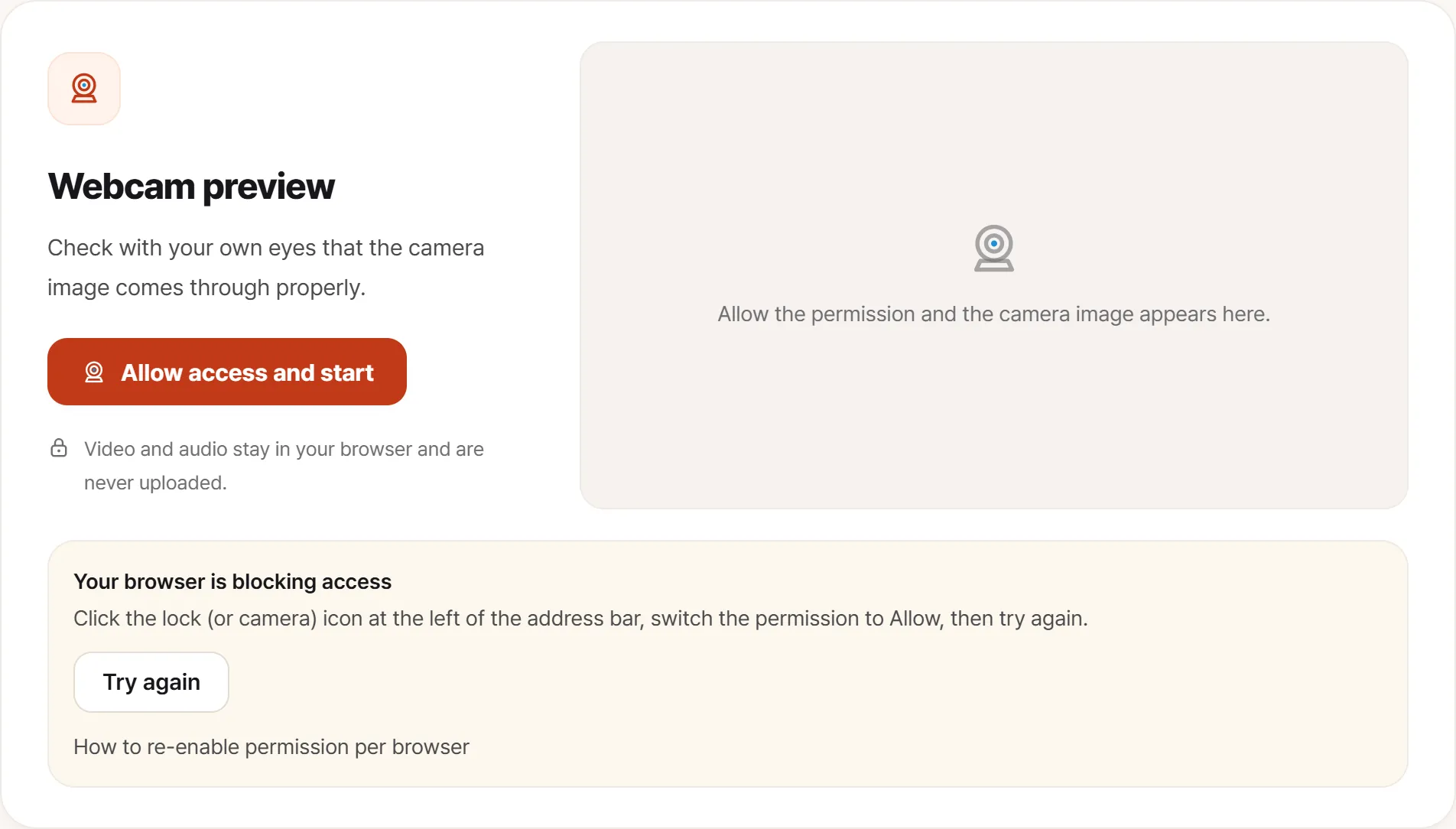
If it stops at the browser, you get this instead. At that point it is still far more likely to be permission than hardware, so work down the three layers described below before assuming the camera is dead.
If the browser can’t show a picture either, the problem is lower down, and the sections below are ordered by how often each cause turns out to be the one.
Black picture, camera listed
The system sees a camera; it just produces darkness. Usually not a fault.
A physical shutter. A slider next to the lens, a few millimetres wide, is standard on a lot of recent laptops and easy to own for a year without noticing. Run a fingernail across the bezel beside the lens.
A camera-disable key. Look along the function row for a camera icon with a line through it. On several manufacturers this cuts the camera at hardware level, and it’s positioned where a palm can catch it. An indicator light or an on-screen toast usually confirms the state.
Protective film. On a new machine, the black film fitted at the factory may still be over the lens. This happens more than you’d think.
A dark room. Laptop sensors are small and take several seconds to adapt. What looks like a black frame is sometimes an exposure ramp that hasn’t finished. Give it ten seconds before concluding anything.
No camera in the list at all
The system can’t find the device. Now you’re below the software layer.
Disabled in BIOS/UEFI. This is worth checking early, and it’s the cause that costs people the most time because nothing in the operating system hints at it. Corporate fleets are routinely shipped with the camera disabled in firmware for security policy, and those machines reach the secondhand market in that state. Enter firmware setup at boot and look for camera or integrated peripherals.
Hidden devices in Device Manager. If no imaging device appears at all, switch the View menu to show hidden devices. A disabled entry sometimes surfaces there.
The ribbon cable, if the machine has been opened. The camera connects through a thin cable that runs across the hinge. A screen replacement or any teardown can leave it seated badly.
If none of those apply and the device still isn’t enumerated, treat it as a hardware fault.
Another application is holding it
A camera is an exclusive resource on most systems. Leave Teams running in the background, open Zoom, and the second one can’t have it. The error text tends to be vague enough (“camera unavailable”) that people read it as a defect.
Close every conferencing application, and every browser tab that might be using a camera. A forgotten tab on a video site is a common culprit precisely because it’s invisible.
Permissions come in three layers
“I already granted permission and it still doesn’t work” almost always means one layer was checked and the other two weren’t.
- Operating system. Windows privacy settings, macOS Privacy & Security → Camera. Granted per application.
- Browser. The browser’s own site-permission defaults. Blocked here and no site can ask.
- The individual site. The icon at the left of the address bar. A single earlier “block” is remembered and never prompts again.
All three must allow it. Check them top down; the third is the one that silently persists.
A picture, but a bad one
Hazy or soft: fingerprints and skin oil on the lens, overwhelmingly. Microfibre cloth.
Dark and noisy. A laptop sensor is much smaller than a phone’s, and grain in a dim room is within normal behavior. Sitting with a window behind you makes it worse by forcing the exposure down. Put the light source on your side of the camera.
Green or purple cast: a color-space handling problem in the driver or the app. Check whether another application shows the same thing; that splits the two.
Stuttering or low frame rate. Try a lower resolution. For an external camera behind a USB hub, hub bandwidth is a frequent cause; connect it directly.
If you get to the end of this
Record these before contacting anyone. They’re the questions you’d otherwise be asked and asked to redo:
- Whether the browser test failed too: the strongest single piece of evidence that it isn’t an application problem
- Whether the device appears in the system list. This separates enumeration failure from imaging failure
- Black frame or error message, and the message text verbatim
- When it started, and what happened just before: an update, a teardown, a policy change
- Whether a different user account behaves the same, to rule out per-account configuration
Five lines, and nobody has to repeat the work you already did.