

Camera and microphone faults have a bad habit of announcing themselves at the start of a meeting. They’re also the two components most often reported as broken when nothing is wrong with them at all.
Worth separating those cases before you conclude anything.
Permissions and shutters explain most of it
Before assuming hardware, rule these out. They account for the large majority of “my camera doesn’t work.”
A physical privacy shutter. Many laptops have a small slider above the lens. Closed, you get a black image and a perfectly healthy camera. Look at the bezel.
A hardware kill switch. Some manufacturers put a camera or microphone toggle on the function row or the side of the chassis. It persists across reboots and gives no on-screen indication.
OS-level permission. Windows: Settings → Privacy & security → Camera / Microphone. macOS: System Settings → Privacy & Security. A blocked application gets a black frame or silence, not an error.
Browser-level permission. Separate from the OS and per-site. If a site was ever denied, it stays denied until you change it in the address-bar site settings.
Another application holding the device. Cameras are exclusive on Windows. A video call app left running in the background keeps the camera locked, and everything else gets nothing. Close them all and try again.
Muted rather than broken. Microphones can be muted at the OS level, in the application, and on the hardware. All three are independent.
The browser test above requests permission explicitly and tells you which of these went wrong. Denied, no device found, and already in use are three different messages, and knowing which one you got points straight at the cause.
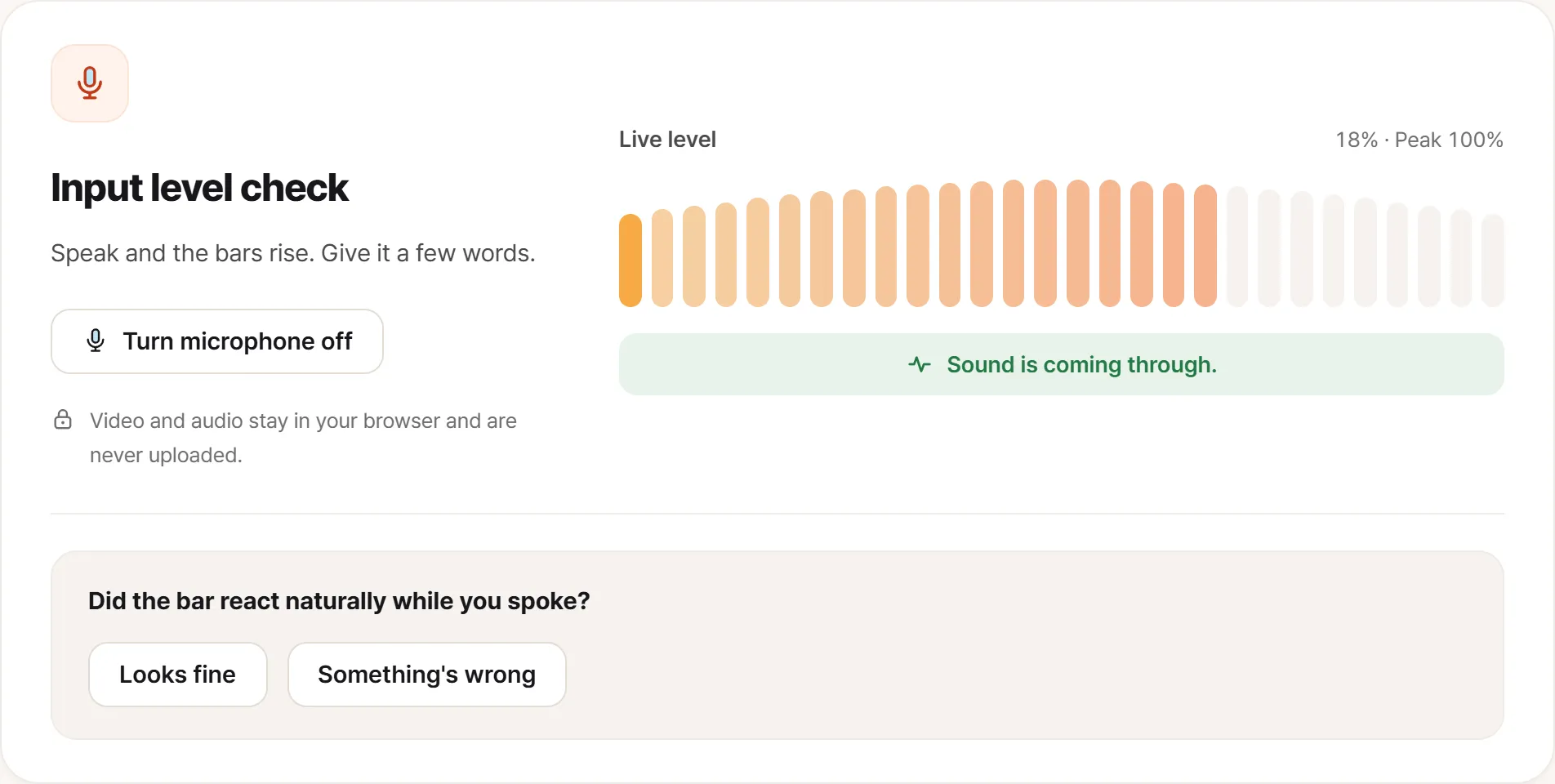
The microphone side reports as a level bar. Two things to watch: whether it tracks your voice, and whether the peak figure climbs.
A camera can work perfectly and still be bad
This distinction matters when deciding whether you have a fault or a disappointment.
Laptop webcams are physically tiny, and many are 720p sensors in a lid that’s a few millimeters thick. Grainy in a dim room, soft at the edges, washed out against a window: that’s the sensor, not a defect. It won’t be fixed by a repair and it isn’t grounds for a warranty claim.
Actual faults look different:
- No image at all once permissions are confirmed
- Stutter or frozen frames while the light is on
- Tearing, banding, or colored lines across the image
- A stuck focus that hunts continuously and never settles, on a camera with autofocus
- A dead or hot pixel in the sensor, visible as a fixed dot that stays in the same place regardless of what you point it at
The middle three are the ones worth acting on quickly. They’re firmly hardware and they don’t improve.
Testing both in the browser
Open the camera test and watch the preview for thirty seconds rather than glancing at it. Stutter and tearing are intermittent by nature, and a two-second look catches nothing. Check the reported resolution while you’re there; it should match what the manufacturer claimed.
For the microphone test, watch the input level meter while you speak at a normal volume. What you want is movement that follows your voice: rising as you speak, falling as you stop. What you don’t want is a meter pinned at zero, one pinned at maximum, or one that reacts a full second late.
Both tests run entirely in the browser. Nothing is uploaded and nothing is recorded.
Microphone faults hide behind processing
Microphone problems are harder to pin down than camera problems because so much software sits between the capture and what you hear.
Noise suppression can be aggressive enough to gate out a quiet speaker entirely. Sounds like a dead microphone; is a setting.
Automatic gain control raises the level in silence, which manifests as a hiss that swells whenever you stop talking. Normal behavior, not a fault.
Beamforming arrays. Most laptops have two or three microphones and combine them directionally. If one element in the array has failed, the result is a strange hollow or off-axis sound rather than silence, and it’s easy to blame on the room.
So a level meter that responds correctly tells you the capture path works. If audio still sounds wrong to other people, look at processing settings before hardware.
When it only fails in one application
This is common and it’s almost never the hardware.
Each application picks its own input and output device, and they don’t share that choice. A machine with a laptop microphone, a headset, and an HDMI display can have three plausible devices, and an application that has silently selected the wrong one behaves exactly like a broken microphone.
If the browser test works and one application doesn’t, the fault is in that application’s device selection. If the browser test fails too, then you’re looking at the device.
Then do one real call
The tests confirm the hardware works. They can’t confirm your setup works, because a real call adds echo cancellation, network conditions, and whatever the other end is running.
Call someone before you need to. Ask two questions: can you see me clearly, and is there anything odd about how I sound. Thirty seconds, and it catches the setup problems that no local test can.
Making “sometimes” describable
- Which symptom. No image, stutter, tearing, silence, distortion
- Whether the browser test reproduces it, which separates hardware from application
- Whether it happens with an external camera or headset. If an external device is fine, the built-in one is at fault
- A short clip. Video for image faults, an audio recording for sound. Both are far easier to show than to describe
Do this in the first few days. A camera that’s only used once a month is a camera whose fault gets discovered long after the window closed.