

Before narrowing anything down, the sentence has to be split. Most of the wasted time on this problem happens because it isn’t.
“I can’t hear anything on the call” contains two unrelated faults pointing in opposite directions. If you can’t hear them, that’s an output problem and the microphone is irrelevant. If they can’t hear you, that’s a microphone problem. Starting to reinstall audio drivers before establishing which one you have can burn an afternoon.
For verifying a microphone on a machine you just bought, see how to check a webcam and microphone. This guide is for one that has stopped working.
Establish the direction
- You can’t hear them → output, not input. Go to checking laptop speakers
- They can’t hear you → this guide
- Both → the audio device has almost certainly changed underneath you; start with the Bluetooth section below
Then open the microphone test above and speak. If the level moves, the microphone hardware, its driver, and the operating system permission layer are all working. In that case the fault is inside one application, and only the “settings that live inside the app” section applies.
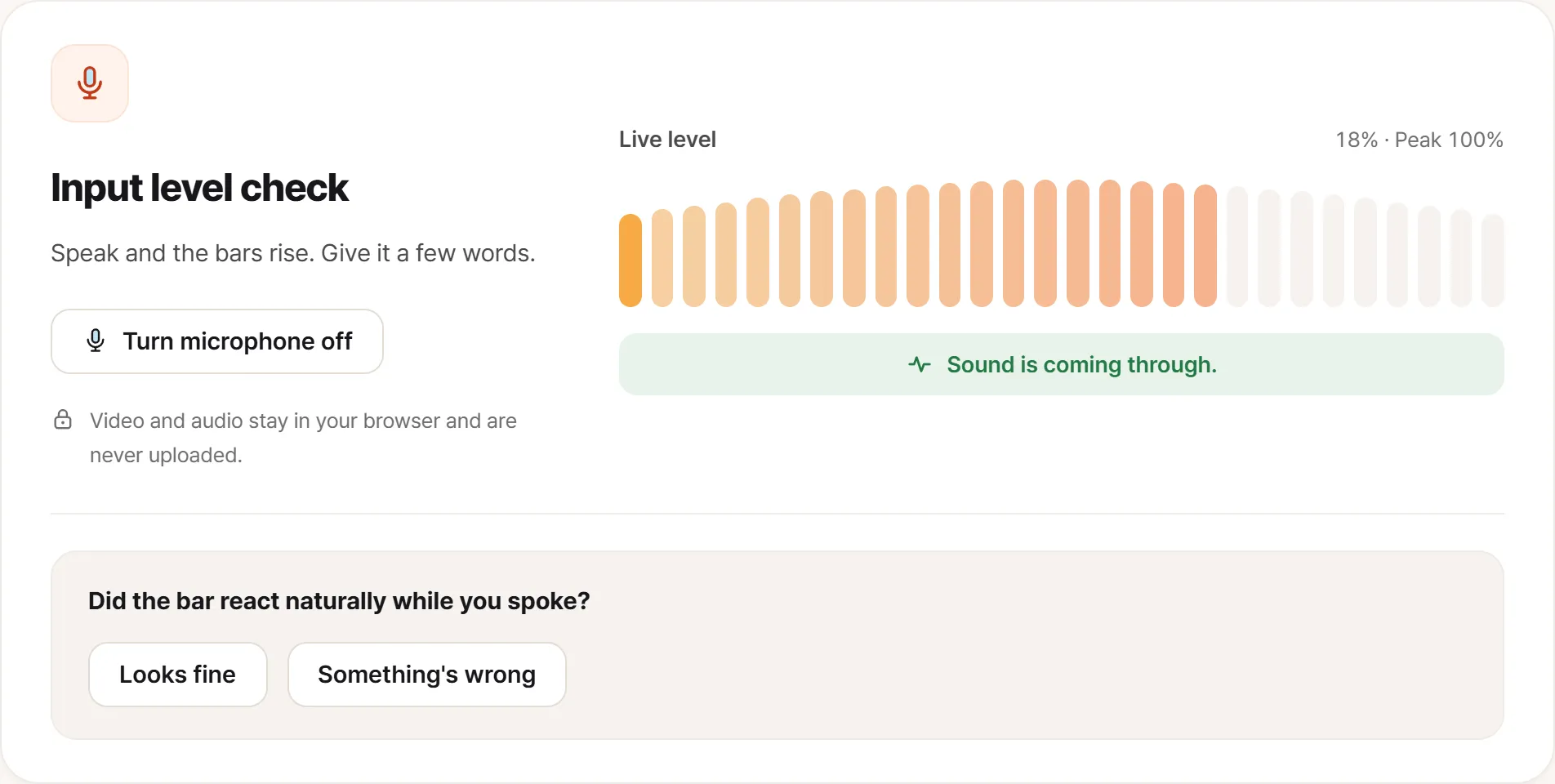
Sound arriving looks like this. Read the peak rather than the instantaneous figure: the level drops to zero between words, but a peak that moved at all means the microphone captured something.
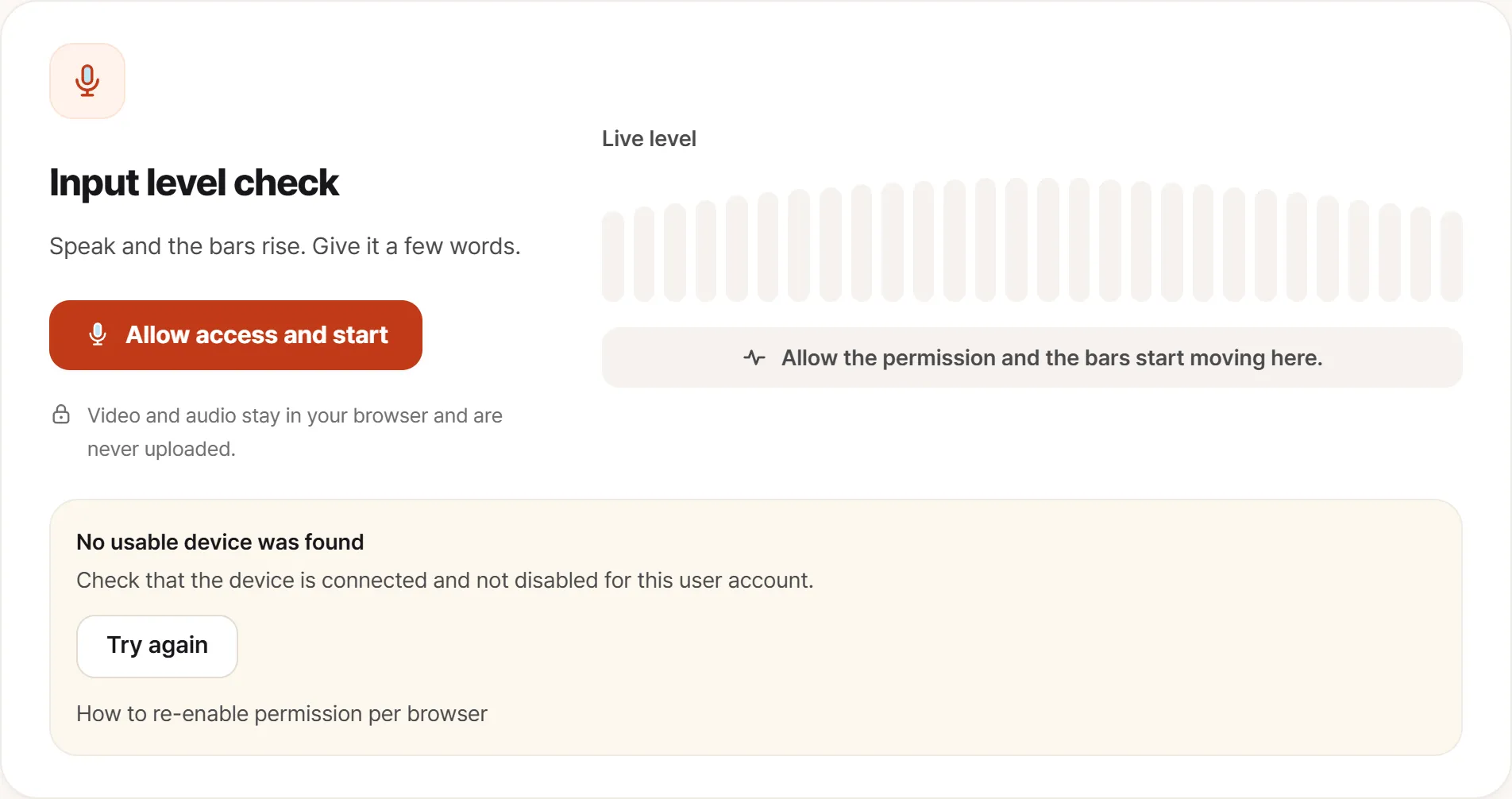
Stopping here is not yet a hardware fault. This screen sends you to the permission layers first.
If you’re on a Bluetooth headset, start here
This one is common and rarely explained, so it’s worth putting above the obvious checks.
A Bluetooth audio device operates in two distinct modes. Playing music, it runs a high-quality one-way profile. The moment its microphone is also in use, it switches to a call profile that shares limited bandwidth in both directions, so audio quality drops audibly in both directions at once.
That produces a set of symptoms that look like a fault and aren’t:
- Music is fine, but as soon as a meeting starts everyone sounds like a phone call from 1998
- The same headset appears twice in the sound settings, once for playback and once for calls
- Picking the call entry gets you a working microphone and poor audio; picking the playback entry gets you good audio and no microphone
This is how Bluetooth works, not a defect. If audio quality matters more than headset convenience, use the headset for output and the laptop’s built-in microphone for input. Input and output are selected independently in system settings, and that combination avoids the switch entirely.
Mute exists in three places
Any one of them silences you. In the order people miss them:
- Hardware. An inline button on a headset cable, a mute key in the function row (usually with an indicator light), or a boom arm that mutes when you rotate it upward. The boom is the one that defeats people, because nothing tells you the feature exists.
- Operating system. The input device’s own level, which can be muted or at zero independently of everything else.
- The application. The mute button in the meeting.
Everyone checks the third one.
Settings that live inside the app
If the browser test shows a healthy level but one application hears nothing, it’s nearly always this.
Meeting applications remember their own input device, separately from the system. Zoom, Teams, Discord and the rest each keep an audio input setting, and once set it does not follow the system default. A headset you used months ago can still be selected; it isn’t connected, so nothing arrives.
Open the application’s audio settings, select the device you’re actually using, and use the built-in mic test that almost all of them provide to confirm it there rather than on the next call.
Level, gain, and processing
Input level set low. Input volume is a separate control from output and produces a mumbling, distant result when it’s down. If the system offers a microphone boost, note that it amplifies room noise along with your voice.
Automatic gain control. Most conferencing apps enable “automatically adjust microphone volume” by default. It usually helps, but it can fail to lift a quiet speaker or ride noise upward during pauses. If your level is visibly inconsistent, turn it off and set the level by hand.
Noise suppression removing your voice. Modern apps and audio drivers ship with aggressive noise cancellation enabled. Set high, it classifies quiet speech as noise and removes it. If people report that your first syllable keeps disappearing, or that you cut out when speaking softly, this is the first thing to reduce.
Sound arrives, but wrong
Crackling: a 3.5 mm plug seated halfway or a worn jack. The combo jack on a laptop is a high-wear part. Substituting a USB headset separates the two immediately.
A low hum underneath everything is electrical noise. Unplug the charger and run on battery. If it stops, the adapter or its grounding is the source.
Echo: nearly always placement, not the microphone. Your speaker output is being picked up by your microphone. Headphones eliminate it instantly. When a meeting echoes, someone in it is on speakers; no microphone needs fixing.
Distant, roomy sound. A built-in laptop microphone sits 40 cm or more from your mouth, above the screen or on the chassis edge. At that distance it captures the room as well as you. That’s normal, and the only real fix is a microphone closer to your mouth.
When even the browser test fails
- OS permission: Windows privacy settings, macOS Privacy & Security → Microphone, granted per application
- Browser and site permission. A single earlier denial is remembered and never prompts again. Reset it from the icon in the address bar
- Exclusive mode on Windows. An application that has taken exclusive control locks everything else out. In the sound control panel, open the device’s properties and disable exclusive control
Quote what they actually heard
- Which direction: you can’t hear them, or they can’t hear you
- Whether the level moved in the browser test, evidence that the hardware is fine
- Which device: built-in, wired headset, Bluetooth, USB
- Every application, or one application
- What they actually heard, in their words
The last line matters more than it looks. “Nothing at all,” “cutting in and out,” “muffled,” and “crackling” point at four different causes, and “they couldn’t hear me” points at none of them.