

This guide covers one thing: how to examine each item properly, and how to record what you find. The stages either side of it are elsewhere.
- The order of inspection, day one through the deadline → what to check on a new laptop
- Whether what you found counts as a defect → how to spot an early defect
The recording half matters more than people expect. “The screen looks a bit off” and “one permanently white pixel on a black field, lower right, about three-quarters across and two-thirds down, first seen on delivery day, photo attached” describe the same defect and get treated completely differently by the same support agent.
Do this while the box is open
The unboxing happens once. Anything you don’t capture now, you can’t capture later.
Photograph all six faces. Lid, base, both sides, front, back, under decent light and from a couple of angles. If there’s ever an argument about transit damage, these are the argument.
Photograph the packaging itself if it arrived dented or opened. The contents can look fine and still have taken a knock.
Capture the serial number and exact model string. It’s on the base label and in system information. Every support conversation opens by asking for it.
Screenshot the order confirmation, with the configuration you paid for and the price on it. Product pages get edited quietly.
Five minutes, once, and you never need to reconstruct any of it from memory.
Confirm the machine is the machine you ordered
The easiest thing to verify and the hardest thing for anyone to argue with. Ask the hardware, not the listing.
Windows. Win + R, then msinfo32. Processor, installed physical memory, and system model are all on the first screen. Storage capacity is under Settings → System → Storage.
macOS. Apple menu → About This Mac for the chip, memory, and serial. Storage lives in System Settings → General → Storage.
Four things to compare:
- The CPU model string including the suffix: a U-series and an H-series part from the same generation are not the same processor
- Memory size, and whether it’s soldered or in slots
- Actual storage capacity (1TB showing as 931GB is normal and expected)
- Panel resolution and refresh rate
A specification mismatch is the cleanest possible claim. That’s why it goes first.
The browser checks, and what to write down
The tools handle the looking. What they can’t do is remember. Results live on screen and nowhere else, so you have to write down anything you find while it’s still in front of you.
A note that holds up needs four things:
- Where, precisely. Not “right side of the screen” but “lower right, roughly three-quarters across, two-thirds down, on a black field”
- When, and under what conditions. Always, or only on certain colors, or only after the machine has been warm for an hour
- Whether it reproduces. Does it come back in the same place after a restart? A one-off sighting rarely convinces anyone
- A photo or a video. Stills for display faults, video for anything involving sound or key timing
Run the full check to take the six in sequence, or open a single tool when you want to re-examine one thing.
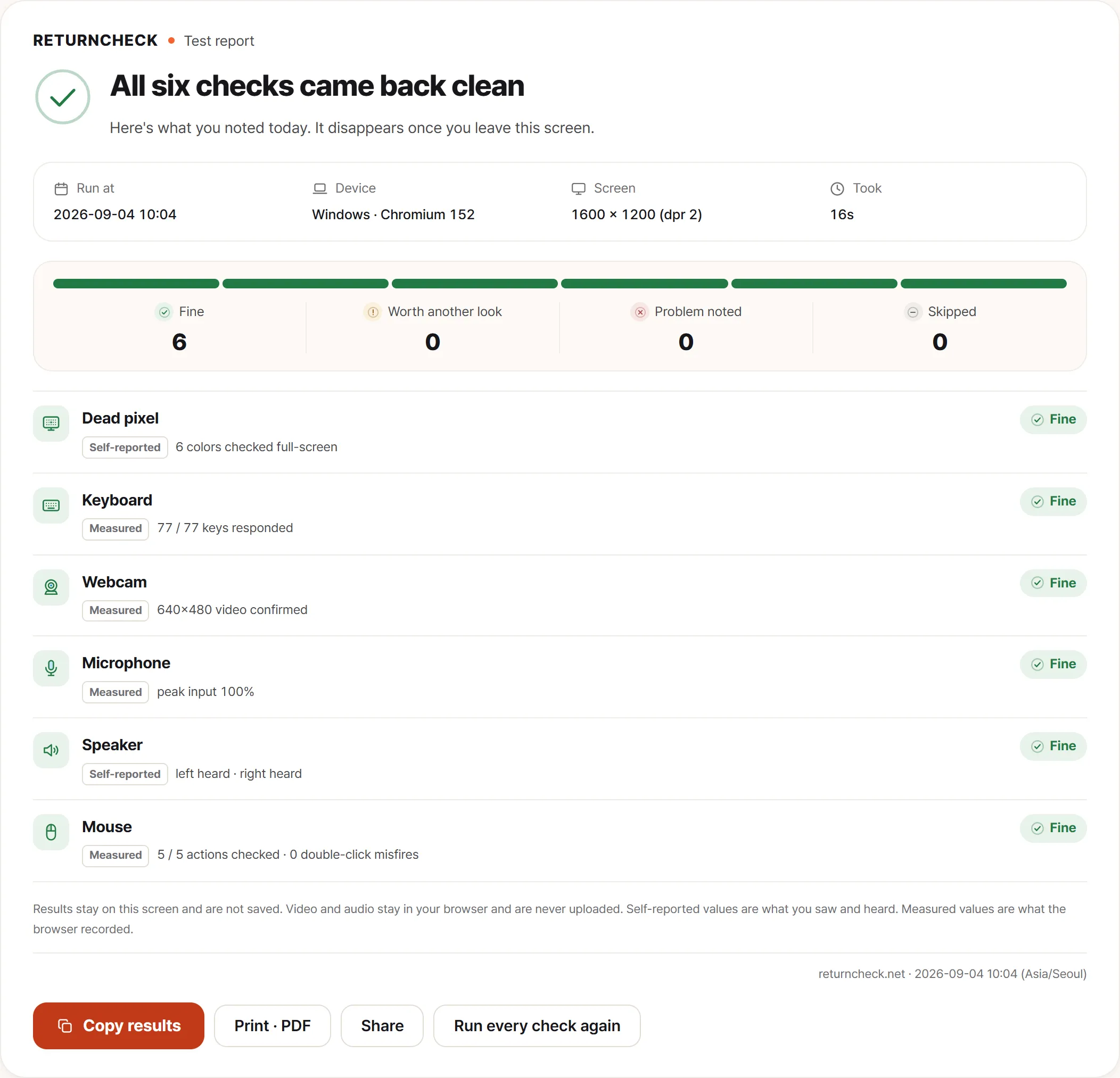
One thing to note from that screen. As the line underneath says, the results are not stored. Leave the page and they’re gone. Capturing or writing them down is on you, which is the reason this article keeps pushing the record.
What no browser can check
Every port, individually. Four USB ports means four tests. Two-of-four failing is a real failure mode and testing one port will never find it. Same for HDMI, card readers, and the headphone jack.
Charging, through each port that claims to support it. Watch the percentage actually climb. On machines with several USB-C ports, it’s common for only some of them to deliver power.
The trackpad, including its corners. Tap, two-finger scroll, click-and-drag, then each corner separately. Dead or insensitive corners are a known and easily missed defect. On a machine with a touchscreen, checking the touchscreen applies too.
The hinge. Equal resistance on both sides through the full range, no wobble at any particular angle. Hinge problems get worse, never better, which is exactly why they’re worth catching early.
Wi-Fi throughput, compared with another device in the same spot. One machine being dramatically slower than everything else on the same network points at the antenna or the driver.
That is everything examinable on the first day. Sleep-wake failures, intermittent Wi-Fi drops and the rest need several days of ordinary use before they surface at all; they’re the second session in what to check on a new laptop. A clean first day is not a finished inspection.
Keep the box for now
Original packaging is worth more than the space it takes. Plenty of policies ask for it, resale value depends on it, and it’s the only thing designed to protect the machine in transit.
Keep the accessories together too: charger, cable, adapter, manuals, warranty card, any dongles, and any film you peeled off. Whatever came in the box gets checked against a list eventually.
What makes a record survive three weeks
The more common mistake isn’t missing a fault. It’s finding one and recording it in a form that turns out to be useless.
The test is simple: could you find that exact spot again from your own note, weeks later, without the machine in front of you? “Top right of the screen looks odd” fails it, even for the person who wrote it. That’s why position goes down as a fraction of the screen, conditions go down as a sequence you can repeat, and the rest goes into a photograph.
Add one more thing: the date. Without it, nobody can establish whether a fault arrived with the machine or appeared later, and that’s the question every claim turns on. A photograph carries its capture date in the file; a screenshot often doesn’t. Prefer the camera.
If the machine ends up going somewhere else, read wiping a laptop before you sell or hand it on first. Some of those steps are painful to undo in the wrong order.