

The laptop works. You’ve signed in, the screen is on, nothing is obviously wrong. That’s usually where checking stops, and it’s why so many faults get discovered in week three, by which point the easy options have quietly closed.
It helps to think of this as three separate questions rather than a schedule: what a browser can check for you in ten minutes, what needs your own hands, and what simply refuses to show up on the first day.
This guide covers what to check and when. Two related questions live elsewhere:
- Whether what you found is a defect or normal behavior → how to spot an early defect
- How to examine each item closely and record it usefully → the detailed check for a device you just bought
Two clocks, not one
Retailers and manufacturers run separate schemes and people conflate them constantly.
The retailer’s terms are short (commonly a few weeks) and generally cover a change of mind as well as a fault. The manufacturer’s warranty runs far longer but only covers defects, and claiming on it means shipping the machine somewhere and waiting.
Both clocks are already running, and neither is described the same way by any two shops. Read your order confirmation and the retailer’s own policy page; those are the only sources that apply to your purchase.
Then write both dates somewhere that isn’t your memory. A calendar entry does the job; memory does not.
What the browser can settle in ten minutes
Six things need no software installed and no expertise. Run them from the links above, or take all six in sequence with the full check.
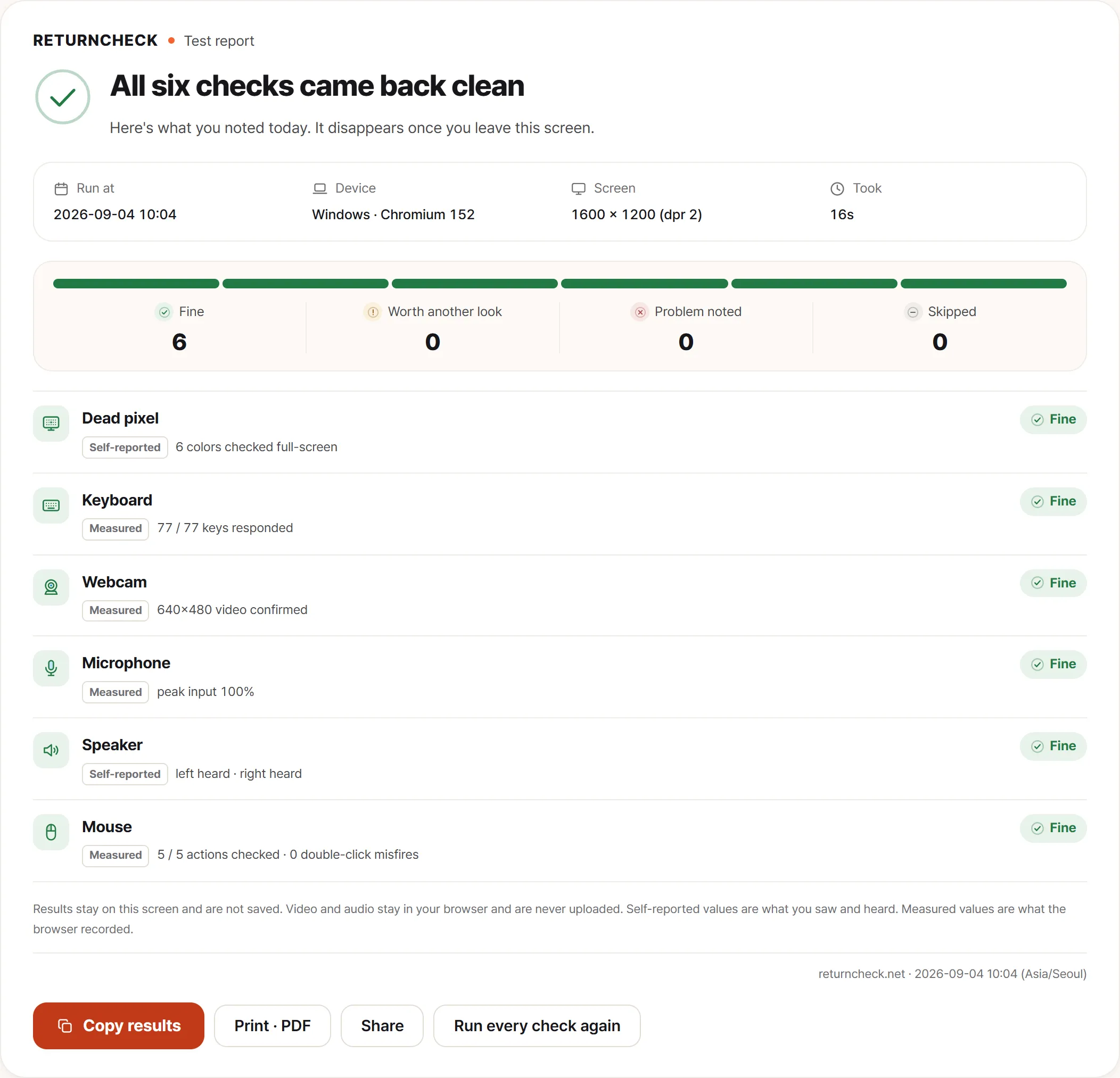
Finishing the full check collects all six on one screen. The results are identical to running the tools individually; the difference is that a fixed order leaves nothing out.
- Display. Flat colors reveal dead pixels, stuck pixels, uneven brightness, and backlight bleed. None of this is visible against a normal desktop (more)
- Keyboard. A key that never registers, or one that fires twice (more)
- Webcam. Live image, resolution, focus, noise (more)
- Microphone. That input actually arrives, at a sane level
- Speakers. Left and right separately, which is the only way to catch a dead channel
- Mouse or trackpad. Click chatter and wheel behavior (more)
These are the cheap wins. Every one of them is a hardware fault that a browser can surface without you knowing anything about hardware.
What only your hands can check
The browser has no access to the physical machine, so these are yours:
Is it the machine you ordered? Model number, CPU, RAM, storage size. Compare against the order confirmation, not against what you remember ordering. Wrong-spec shipments are more common than wrong-model ones and much easier to miss.
Does the outside look untouched? Lid, base, corners, hinge, screw heads, panel gaps. Screw heads matter: marks on them mean the machine has been opened, which on a supposedly new unit is worth a conversation.
Do the ports work? Every USB port, the charger port, the card reader if there is one. Plug something into each. A dead port on a machine with three of them is not a small problem.
Does it charge, and does Wi-Fi hold? Both need a few minutes of watching rather than a glance.
Each of those is one line here and a paragraph elsewhere. Ports and charging in particular have a right way and a wrong way to test, covered under what no browser can check in the detailed check.
What needs a few days
Some faults are real but invisible on day one, which is why a single check session isn’t enough.
Battery figures on day one are meaningless. A new machine spends its first days indexing files, installing updates, and running whatever the manufacturer preinstalled. Judging battery life during that is judging a completely different workload. Wait for it to settle, then read the numbers properly (more).
Thermal and noise behavior need a real load (a video call, a game, a build) rather than an idle desktop. Telling normal heat from a fault covers where that line sits.
Intermittent faults are by definition not there when you look. A key that fails once a day, a Wi-Fi drop every few hours, a fan that only rattles when warm. These need days of ordinary use, which is exactly why the second look matters more than people expect. Spotting an early defect covers how to pin down something that won’t reproduce on demand.
Why three short sessions beat one long one
Thirty minutes on day one finds less than thirty, ten and ten spread across two weeks, and the reason is structural rather than about diligence.
Day-one faults are the ones that are simply there: a dead pixel, a key that never fires, a port that does nothing. Extending that session doesn’t help, because the second category needs repetition to become visible at all. A wake failure that happens one time in three isn’t discoverable in a single sitting no matter how long you sit.
The third session is different again. It exists because that’s the last point at which you still have every option. The same defect found a day later moves from a return to a repair: same fault, entirely different outcome.
Then go back over it, a couple of weeks in
Before the dates you wrote down, revisit what you recorded rather than what you remember. Anything still unchecked, check now. Anything you marked as a problem, settle now. Some of them will have become unmistakable, and some will turn out to have been nothing.
For how to examine each item closely and record it in a form that survives the conversation with support, see the detailed check for a device you just bought.