

The fastest way to diagnose a keyboard isn’t by what the dead keys do. It’s by how many of them there are, and what shape they make.
A keyboard is a matrix: rows and columns of conductors with a switch at every crossing, and a pressed key is read as the intersection of one row and one column. That construction means a single broken connection doesn’t kill one key. It kills everything on that line at once. So a row of dead keys and a scattering of dead keys are not the same problem with different severity. They’re different problems.
For checking a keyboard on a new machine rather than repairing one, see how to check a laptop keyboard.
If liquid was spilled, this part first
Out of order deliberately, because the first minute determines whether the rest is recoverable.
- Cut power immediately. Don’t wait for a clean shutdown. Hold the power button.
- Unplug the charger, and remove the battery if it’s removable.
- Invert the machine, keyboard down, resting open over the edge of a table so liquid drains away from the board rather than further into it.
- Do not turn it on to check. Liquid across a powered circuit destroys by short, not by corrosion, and that’s the difference between a keyboard replacement and a board replacement. Leave it at least 48 hours, until it is genuinely dry.
If keys are dead once it’s dry, the contacts are already damaged. Sugary drinks leave a sticky residue behind after evaporating that holds switches down mechanically.
Nothing at all responds
Counterintuitively, a completely dead keyboard is more likely to be software than a partly dead one.
Check whether it works before the OS loads. Try to enter firmware setup at boot (the F2 or Delete prompt). If you get in, the hardware is fine and the fault is in the operating system or its driver. If that screen ignores you too, it’s hardware. This one test resolves half the diagnosis and costs a reboot.
Filter Keys. Holding Shift for eight seconds enables it on Windows, it’s easy to trigger accidentally while gaming, and it makes a working keyboard feel like it’s dropping input.
The driver. Remove the keyboard entry in Device Manager and reboot; the standard driver re-enumerates. Low risk, worth trying.
Plug in an external keyboard. External works and internal doesn’t: the fault is the internal keyboard or its cable. Neither works: it’s the operating system.
Drain and reset. Some machines need the embedded controller cleared. Unplug power, hold the power button for around thirty seconds, then start it again.
A whole row or region is dead
If the dead keys form a horizontal line, a vertical column, or one contiguous area, you’re looking at the matrix wiring or the ribbon cable, exactly the shape the grid construction predicts.
A drop, a teardown, or liquid that ran to one side usually correlates with which region died. This isn’t user-serviceable. Your job is to document which line is gone.
The keyboard test above maps this cleanly: press every key and watch which positions on the on-screen layout never fill in. Whether the gaps form a line or scatter is the first question a service center asks, and a screenshot answers it better than a description.
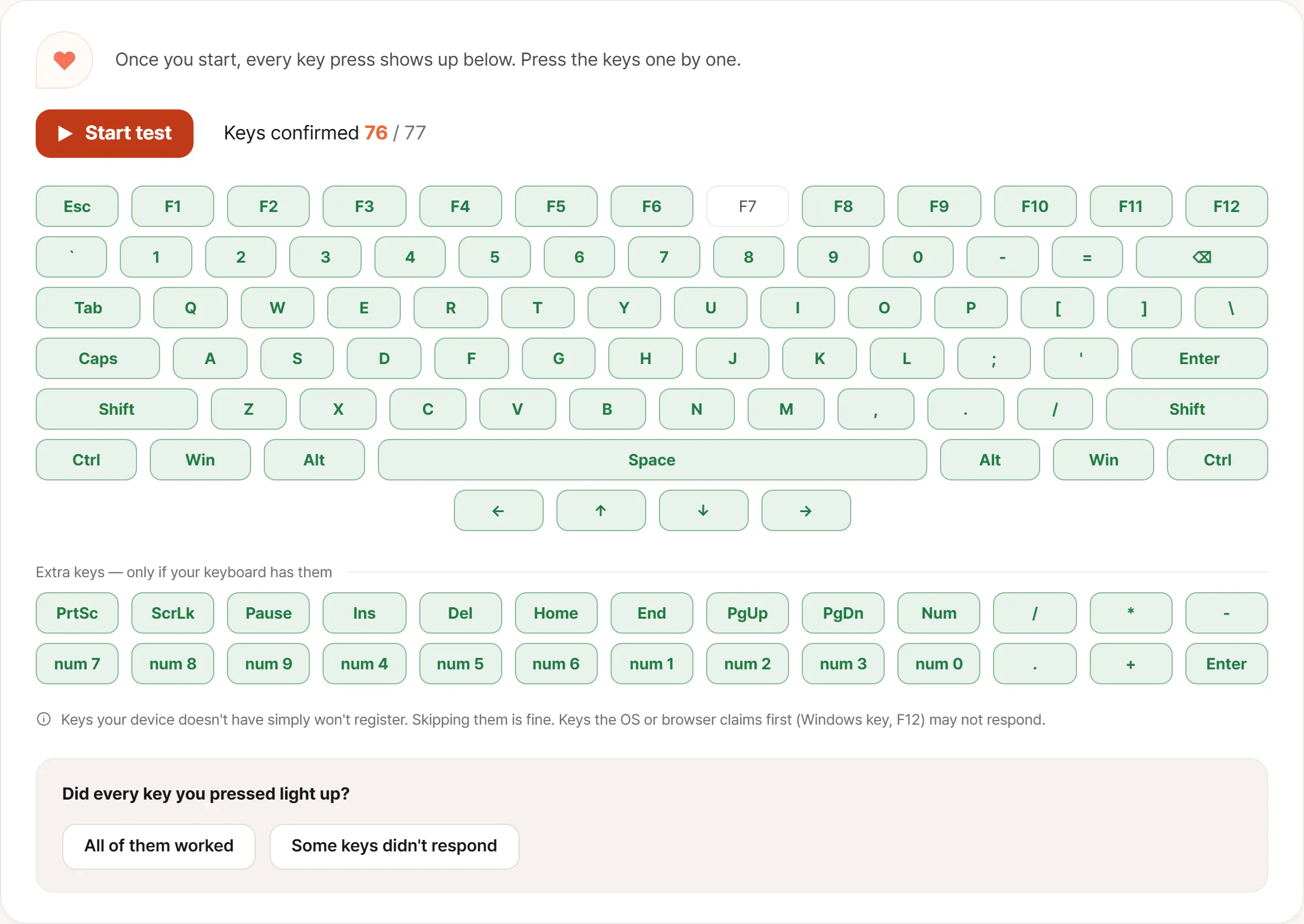
Green is a key that reported itself; white is one that never arrived. A single white key like the one above is a switch. A white run that follows a row or a column is the matrix behind it.
Only one or two keys
Scattered individual failures point at debris or a worn switch.
Compressed air first. A single crumb across a contact is common. Hold the machine on its side and blow along the surface rather than straight down, so you aren’t driving the debris deeper.
Be careful removing keycaps. Laptop caps sit on scissor clips made of thin plastic that snap if levered wrong, and a broken clip can’t be fixed by buying a replacement cap alone. If you’re unsure, don’t remove it. Use air only.
Press it firmly several times. Contacts that have oxidised sometimes reconnect under repeated pressure. That’s a diagnosis, not a repair.
Keys respond, but wrong
Wrong character. Keyboard layout. If the letters are right but the symbols are displaced (quotes, @, backslash), the selected layout doesn’t match the physical keyboard.
Numbers move the cursor instead. Num Lock. On laptops without a numeric pad, some models overlay one onto the letter keys, toggled with a function combination.
One press produces several characters. Switch bounce. It’s a different fault with a different remedy, covered in how to check a laptop keyboard.
A key repeats forever. Physically stuck, or a contact that isn’t releasing. Work the key a few times; if it doesn’t clear, it’s hardware.
Know the repair cost before you decide
Worth being direct about: on many laptops the keyboard is not an independently replaceable part. It’s bonded into the upper case assembly, so replacing one dead key means replacing the palm rest, and out of warranty that is not a small number.
Which means that for one or two dead keys on an out-of-warranty machine, it’s reasonable to get the quote and then weigh it against simply using an external keyboard. For a machine that mostly lives on a desk, that’s often the better answer, and nobody selling you a repair will suggest it.
In warranty, none of this applies. File the claim now rather than after it expires.
Write down every dead key
- Every dead key, listed. This is where the shape appears
- Whether the firmware setup screen responds: the single line that separates hardware from software
- Whether an external keyboard works
- When it started, and whether liquid, impact, a teardown, or an update came first
- A photo of the keyboard test screen, where the unfilled positions are the evidence