

The awkward part of a broken pointing device is that the tool for fixing it is the pointing device. With no cursor, opening a settings panel is itself the first obstacle.
So: the Windows key opens the start menu, typing a few letters reaches almost any settings page, and Tab plus the arrow keys move through it. Everything below can be done from the keyboard.
For a mouse that works but misbehaves (double-clicks from one press, sensor spinout), see how to check a mouse. This guide is for one that has stopped.
A trackpad is usually just switched off
Before anything else. This is more common than every hardware fault combined.
The disable key in the function row. A rectangle with a line through it, normally with Fn. On many models it sits exactly where a palm lands while typing. Press it again.
A tap target in the corner of the pad. Some models toggle on a double-tap in the upper-left corner of the pad itself. If there’s a small dimple or an LED there, that’s the mechanism.
Disabled automatically when a mouse is connected. If that option is on, an old wireless receiver still plugged into a port is enough to keep the trackpad off. Unplug it and check.
Turned off in settings. Search “touchpad” from the start menu; there’s an enable toggle.
Only once all four are ruled out is it worth looking at drivers or hardware.
A wireless mouse that stutters
If the cursor moves but jumps or freezes intermittently, the mouse is usually not the problem.
USB 3.0 interference. This is the one worth knowing. USB 3.0 ports and cables emit noise in the 2.4 GHz band, and a wireless receiver plugged in beside one is trying to hear its mouse through that. The symptom is precisely “it cuts out sometimes,” which reads as a failing mouse.
The fix is trivial: move the receiver to a different port, or put it on a USB extension cable away from the machine. It resolves a surprising share of cases.
A battery on the way down. Wireless mice start dropping input long before they stop powering on, so “it still lights up, so it isn’t the battery” is a bad inference. Replace or fully charge before drawing conclusions.
Distance and obstruction. A receiver in a rear port of a desktop has a metal case between it and the mouse. Use a front port or an extension.
First-move lag on Bluetooth. A beat of delay after the mouse has been idle is the device waking from power saving. Normal.
Wired, and dead
The cable’s flex point. The three centimetres behind the connector fail first. Watch the cursor while slowly bending that section. Intermittent response there is conclusive.
Ports and hubs. Try a different port directly on the machine, bypassing any hub.
Another computer. The most decisive test available. Dead there too means the mouse; working there means this machine.
The cursor moves, but badly
Jitter while stationary. Almost always the surface. Glass and high-gloss desks are conditions under which an optical sensor legitimately fails. That isn’t a defect, just an unusable surface for that sensor. Put a sheet of paper down and retest; it separates instantly.
Direction jumps on fast movement. The sensor’s tracking speed has been exceeded. Common on inexpensive sensors and surface-dependent.
The cursor follows when you lift the mouse. Lift-off distance, adjustable if the mouse has configuration software.
Sluggish or imprecise. Check pointer speed, and check whether “enhance pointer precision” (mouse acceleration) is on. With it enabled, the same physical distance moves the cursor differently depending on speed, which reads as inaccuracy rather than as a setting.
Movement fine, clicks ignored
That’s the switch rather than the sensor. The mouse test above shows which buttons are delivering events. Left, right, and wheel click each register separately, so you can see exactly which one is silent.
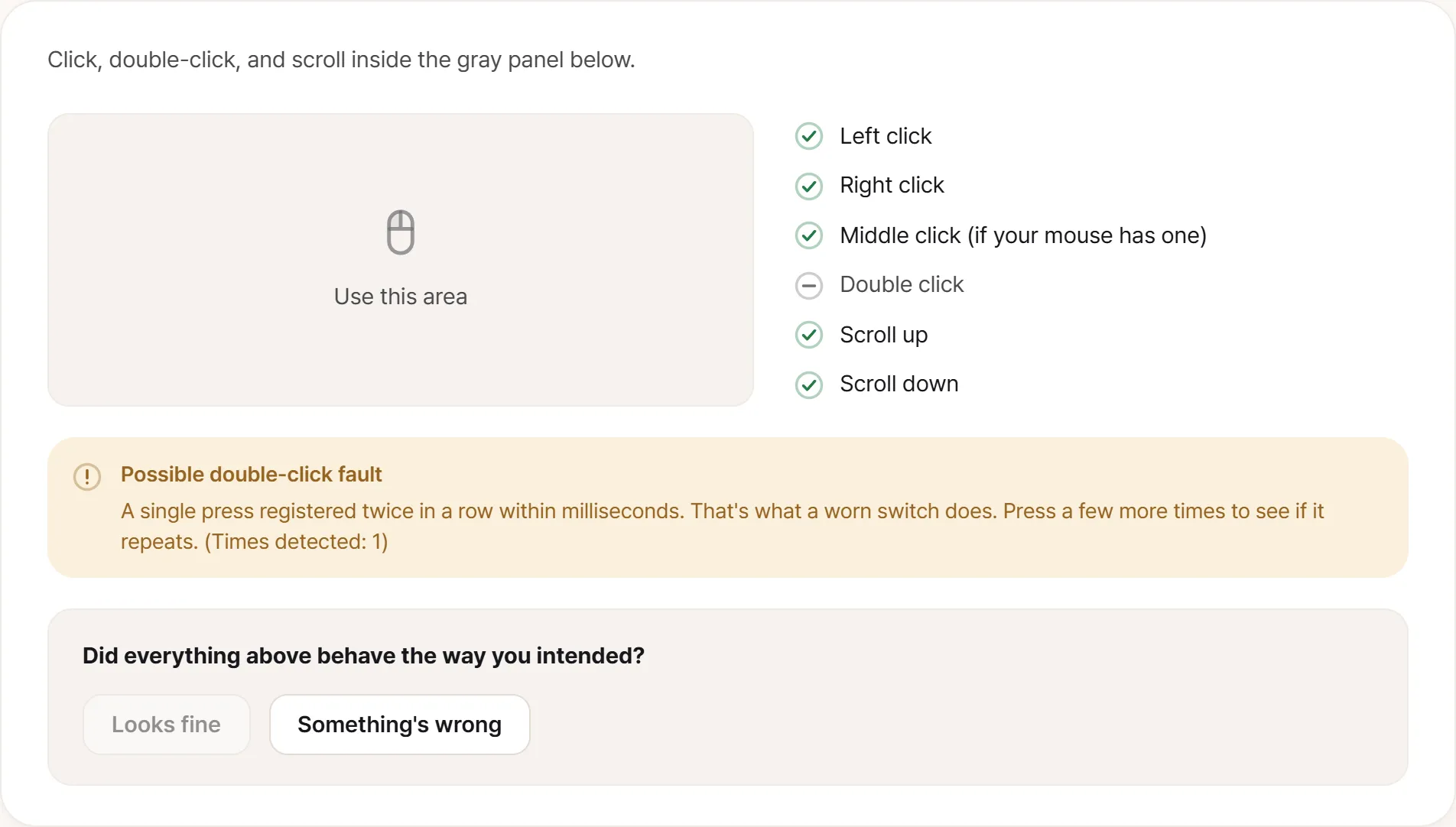
Chatter surfaces like this, with a running count. Press a few more times and watch whether that number climbs. One or two can be coincidence; a number that keeps rising is the switch.
The opposite symptom, one press producing two clicks, is a different failure with a different remedy; it’s covered in how to check a mouse.
On a trackpad, clicks failing only on light taps while a firm press works means tap-to-click is disabled, not that anything is broken.
It worked, then stopped
USB selective suspend. Windows powers down USB ports to save energy, and devices sometimes fail to wake. In the advanced power options, disable USB selective suspend. Wireless receivers are the usual victims.
Immediately after resuming from sleep. Unplugging and reseating the receiver normally restores it. If it keeps happening, the setting above is why.
The driver. Remove the mouse entry in Device Manager and reboot for a clean re-enumeration. All of it can be done from the keyboard.
Which of the three symptoms
- Dead, stuttering, or clicks only: three different components
- Whether another computer shows the same, the test that separates device from host
- Different port, and for wireless, receiver relocated
- Whether you changed surface. Without this, sensor symptoms can’t be diagnosed at all
- When it started, and whether an update or a drop came first
Mice are cheap enough that out of warranty, replacement is often the rational answer once the list above is exhausted. Check the warranty before binning it though. Gaming mice in particular carry longer terms than people assume, and switch failure is the fault those terms were written for.