

Keyboard faults have a specific problem: you only find them on keys you use. The key that never registers might be a bracket you don’t type for a month, and by then the return window is a memory.
The check itself takes two minutes. Most of the value is in doing it early and in ruling out the causes that aren’t hardware at all.
Rule out the software first
A genuinely broken key is less common than these, and all of them look identical from the outside.
Wrong layout. A US machine set to a UK layout, or the reverse, moves @, ", #, \, and ~. The key works perfectly; it just isn’t producing what’s printed on it. Check your keyboard layout setting before anything else.
A latched modifier. Sticky Keys on Windows and Slow Keys on macOS both change how presses register, and both can be enabled accidentally by holding Shift too long. Filter Keys deliberately ignores brief presses, which reads exactly like a dead key.
Num Lock and Fn Lock. On compact layouts these remap a whole block of letters, or invert what the function row does. A “broken” number row is often Fn Lock.
An input method in the way. If you type in more than one language, the active input method may be swallowing keys before any application sees them.
The keyboard test above sidesteps most of this, because it reads the physical key position rather than the character produced. A key that lights up in the test but types the wrong character is a layout problem, not a hardware one. That split alone answers a lot of questions.
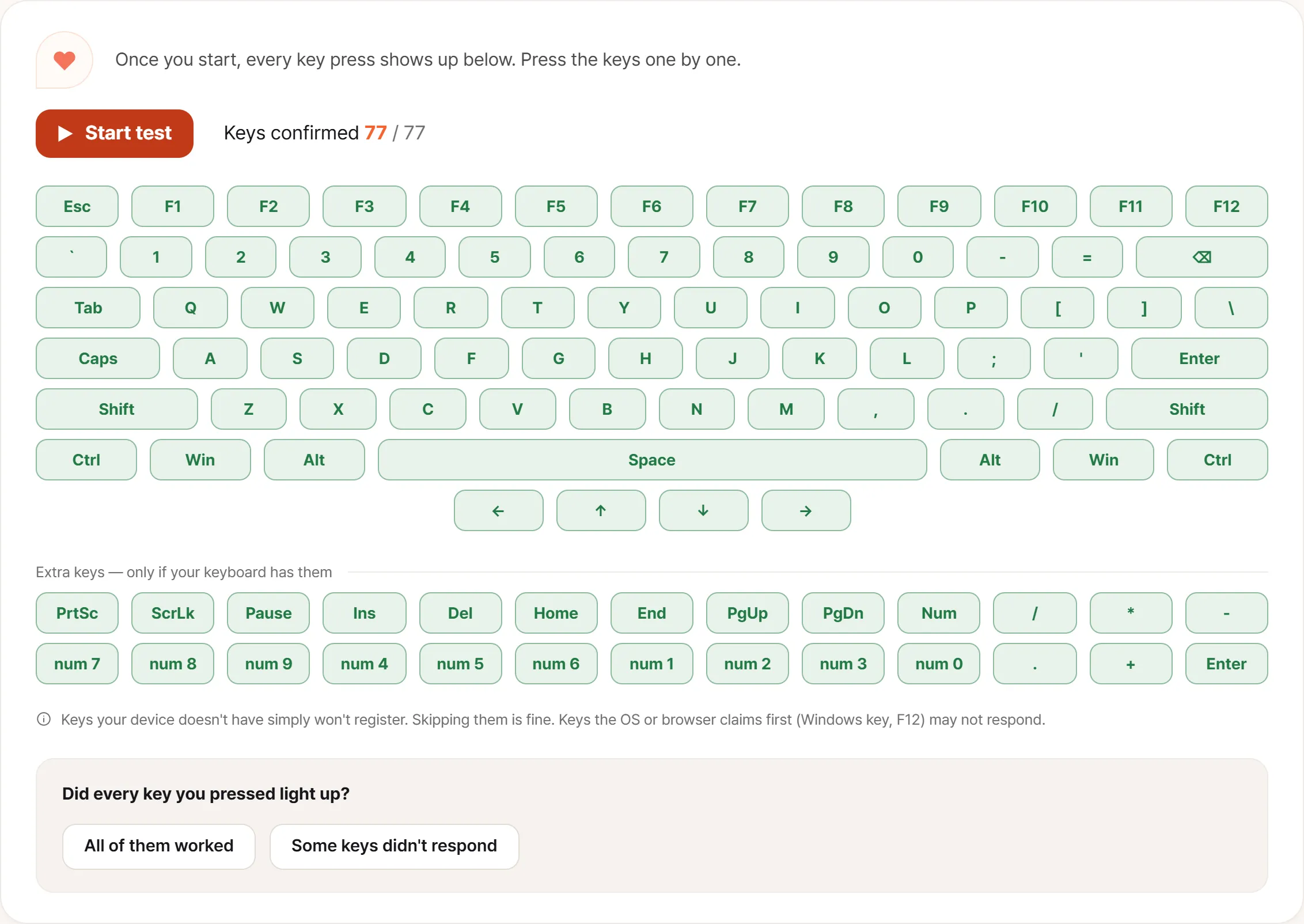
A clean run looks like this: the counter reaches 79 of 79 and no position is left white.
What the physical faults feel like
Once software is ruled out, there are four failure modes and they’re distinguishable by feel:
Nothing registers. The switch or its trace is broken. Feel matters here: if the key still clicks normally but produces nothing, the contact or trace is at fault; if the key feels mushy or sits at a different height, something under the cap is broken.
Registers twice from one press. Contact bounce. One deliberate press produces two characters. Annoying in text, genuinely destructive in anything with keyboard shortcuts.
Needs an unusual amount of force, or only works when pressed dead center. Usually debris or a damaged retainer under the cap.
Sticks after release. The character repeats until you press something else. Mechanical, and it will get worse.
Any of these on a machine that arrived last week is a manufacturing fault, not wear.
Running the check
Start the test, then press every key once and watch the grid. Nothing is captured until you press start, so screen readers and tab navigation work normally until you choose otherwise, and Escape ends capture immediately.
Two things the test can’t do anything about:
- Keys the OS claims first. The Windows key,
F12, and someFncombinations get intercepted before the browser sees them. No response there doesn’t mean broken. - Keys your keyboard doesn’t have. Compact and tenkeyless layouts are missing whole blocks. The extra keys are shown separately and don’t count toward progress for exactly this reason.
Press each key deliberately, one at a time. Mashing produces exactly the ambiguity you’re trying to remove.
The test also watches for chatter while you do this. When the same key registers twice faster than a hand can type, it says so on the spot and keeps a count of which key and how often. Holding a key down doesn’t trip it — that repeat comes from the operating system, not the switch.
Rollover: mostly not a fault
If two or three keys held together stop registering a fourth, that’s usually the keyboard matrix, not damage. Most laptop keyboards are wired in a grid, and certain combinations genuinely cannot be distinguished electrically. Manufacturers guarantee that modifier combinations work, and little beyond that.
It matters for gaming and almost nowhere else. Worth knowing about, not worth returning a machine over, unless the machine was sold on its keyboard’s rollover specifically.
Why the switch type matters
This decides what a repair looks like, which is worth knowing before you choose between returning and repairing.
Laptop keyboards are overwhelmingly membrane with scissor mechanisms: the key is a plastic scissor over a rubber dome and a printed membrane. Individual keys can’t meaningfully be repaired. A fault in the membrane means replacing the whole assembly, which on many designs means replacing the entire top case.
Apple’s butterfly generation (roughly 2015-2019 MacBooks) is the notorious case: a low-travel mechanism where a single speck of dust could disable a key, which led to an extended repair program.
Some gaming and workstation laptops use low-profile mechanical switches, and those occasionally allow a single switch to be swapped.
The practical upshot: on most laptops, one bad key is a whole-assembly job. That’s a slow and invasive repair, which makes catching it inside the return window matter far more than it would for a fault that’s a ten-minute part swap.
Writing it up
If you find something, record it in the terms support will act on:
- Which key, by its printed label
- Which symptom. Nothing, doubles, sticks, needs force
- How reliably. Every press, or one in ten. For doubling, the test counts it for you — run it a few times and quote the number
- Whether it happens on an external keyboard too (if not, it’s the laptop; if yes, look at your layout settings again)
- A short video for doubling or sticking, since those are hard to describe and obvious to watch
Then decide inside the window. A single bad key is a full keyboard assembly, and that’s not a repair you want to be arranging in month two.