

You click a file once and it opens. You drag something and it drops halfway. You select text and the selection collapses.
The natural reaction is to assume you did it: clicked twice by accident, let go too early. Usually you didn’t. This is the most common failure mode a mouse has, and it’s mechanical.
Chatter is a hardware fault, not a habit
Inside every mouse button is a switch with a metal contact. It’s rated for millions of presses, and as it wears, the contact stops closing cleanly. Instead of one clean connection it makes several in quick succession, a few milliseconds apart.
The mouse can’t tell the difference between that and a genuinely fast double click, so it reports two. That’s chatter, and it’s why a single press opens two files.
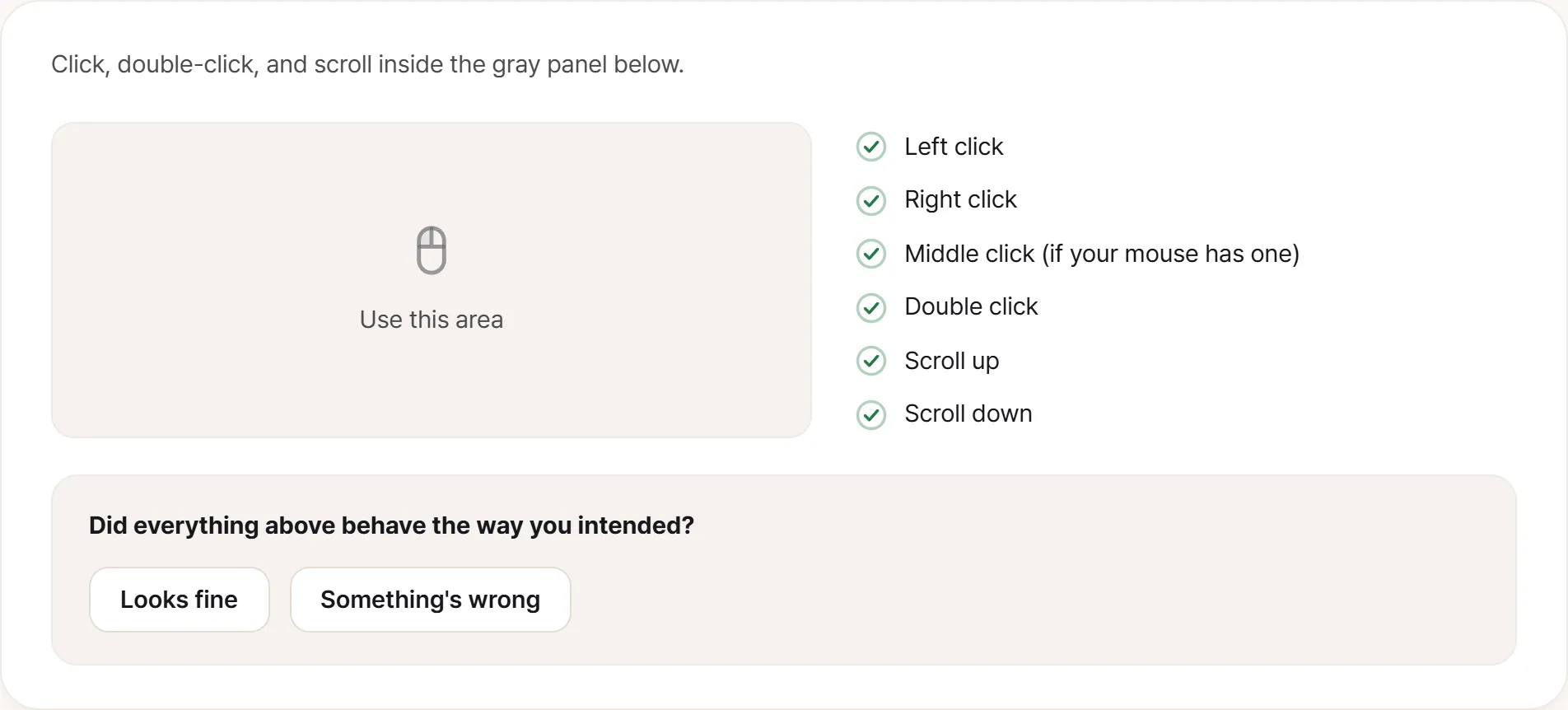
A healthy mouse fills all six checks with nothing else on screen. When the test catches a short double signal, a warning appears below the list with a running count of how many it saw.
The reason it’s worth identifying rather than living with:
- It gets worse. Contact wear is one-directional.
- It damages things. A drag that drops itself mid-motion is a file moved somewhere you didn’t intend. A double-fire on a confirmation dialog clicks through it.
- It’s covered. Mice usually carry longer warranties than people assume, and this is the fault they’re written for.
- It is not a settings problem. Double-click speed settings change what counts as a double click; they don’t stop the switch bouncing.
What the test covers
The mouse test above measures the interval between presses. A human double click is around 200 milliseconds at the fast end; the bounces from a worn switch land inside about 70. When the test sees a gap that short, it flags it as worth another look, not as a verdict. A confirmed diagnosis is the manufacturer’s job, not a web page’s.
The rest of the check is coverage: left click, right click, double click, wheel up, wheel down, and wheel click. Wheel click is optional, because plenty of pointing devices don’t have one, trackpads and two-button mice included. A missing button shouldn’t stop you from recording a working device as fine.
Click each one deliberately, several times. Chatter is intermittent, so three clicks may not surface it and thirty might.
What the click test can’t see
Buttons are only half a mouse. These need a desk and your eyes:
Sensor spinout. Move the mouse fast and the cursor flies off in a direction you didn’t intend. The sensor has exceeded its tracking speed. Surface-dependent, so try more than one.
Jitter. Hold the mouse still and watch the cursor. It should not drift or shiver. If it does, the sensor is struggling with the surface. Glass and high-gloss desks defeat many sensors legitimately.
Lift-off distance problems. Pick the mouse up an inch and the cursor should stop. If it keeps tracking, or if repositioning drags the cursor with it, lift-off is set too high.
Scroll wheel misbehavior. A wheel that skips a step, scrolls the wrong way for one notch, or feels gritty. The encoder wears the same way the switches do.
Cable faults on a wired mouse. Flex the cable near the strain relief while watching the cursor. Intermittent disconnection there is common and unmistakable once you look for it.
Wireless adds its own failure modes
If it’s wireless, some symptoms aren’t the mouse at all:
A dying battery produces stutter and disconnection long before it produces no response. Try fresh cells or a full charge before concluding anything.
2.4 GHz interference. A USB 3 port or hub sitting next to the receiver is a well-documented offender. Move the receiver to a different port, or use an extension cable.
Distance and obstruction. A receiver behind a desktop tower has a metal box between it and the mouse.
Bluetooth latency and reconnection delay are characteristics of Bluetooth, not defects. A brief lag when the mouse wakes is normal.
Rule these out before raising a fault. A wireless mouse that behaves perfectly on the cable, or on a different port, has told you where the problem is.
Trackpads, and why the same test works
The same check runs against a laptop trackpad. Left click, right click (two-finger tap or the bottom-right corner, depending on your settings), double click, and two-finger scroll all map onto the same events.
One difference worth knowing: trackpads with a physical click mechanism can chatter exactly like a mouse switch, and on modern machines with haptic trackpads there’s no mechanical switch at all. A “click” that fires twice there is firmware or driver behavior rather than a worn contact.
If you find something
On a mouse that came with the machine, treat it as part of the laptop and record it with everything else you checked.
On a mouse bought separately, check the warranty before doing anything. Manufacturer warranties on mice frequently run two years, and some gaming models go longer. Chatter within that period is a straightforward replacement, and it’s the exact failure the warranty anticipates.
Either way, record it usefully:
- Which button
- What happens. Fires twice, doesn’t register, drags drop themselves
- How often, as a rough count rather than “sometimes”
- Whether it happens on another computer, which separates the device from the driver
- A short video if you can. Chatter is visibly obvious on screen and hard to argue with
Then decide inside whatever window applies. Chatter never improves on its own.