

The most common fault on a high-refresh monitor has nothing to do with the panel. The panel is running at a fraction of what you paid for, and nothing on screen says so.
A 165Hz display, a graphics card that can drive it, and a picture arriving at 60Hz. The cause is usually the cable in the box or a setting nobody ever opened. You get no error, no banner, and no visual cue of any kind. People run like this for months.
The setting is a request, not a measurement
Seeing “165Hz” in your display settings does not prove the screen is drawing 165 frames a second. The setting is what the operating system asked for. What actually arrives depends on cable bandwidth, the port it’s plugged into, the driver, and the power profile. Any of those can quietly cap it.
So measure it. The refresh rate test times the gap between frames the browser paints and works out how many landed per second. It counts results rather than reading a settings panel, which is exactly what you want when the settings panel is the thing you don’t trust.
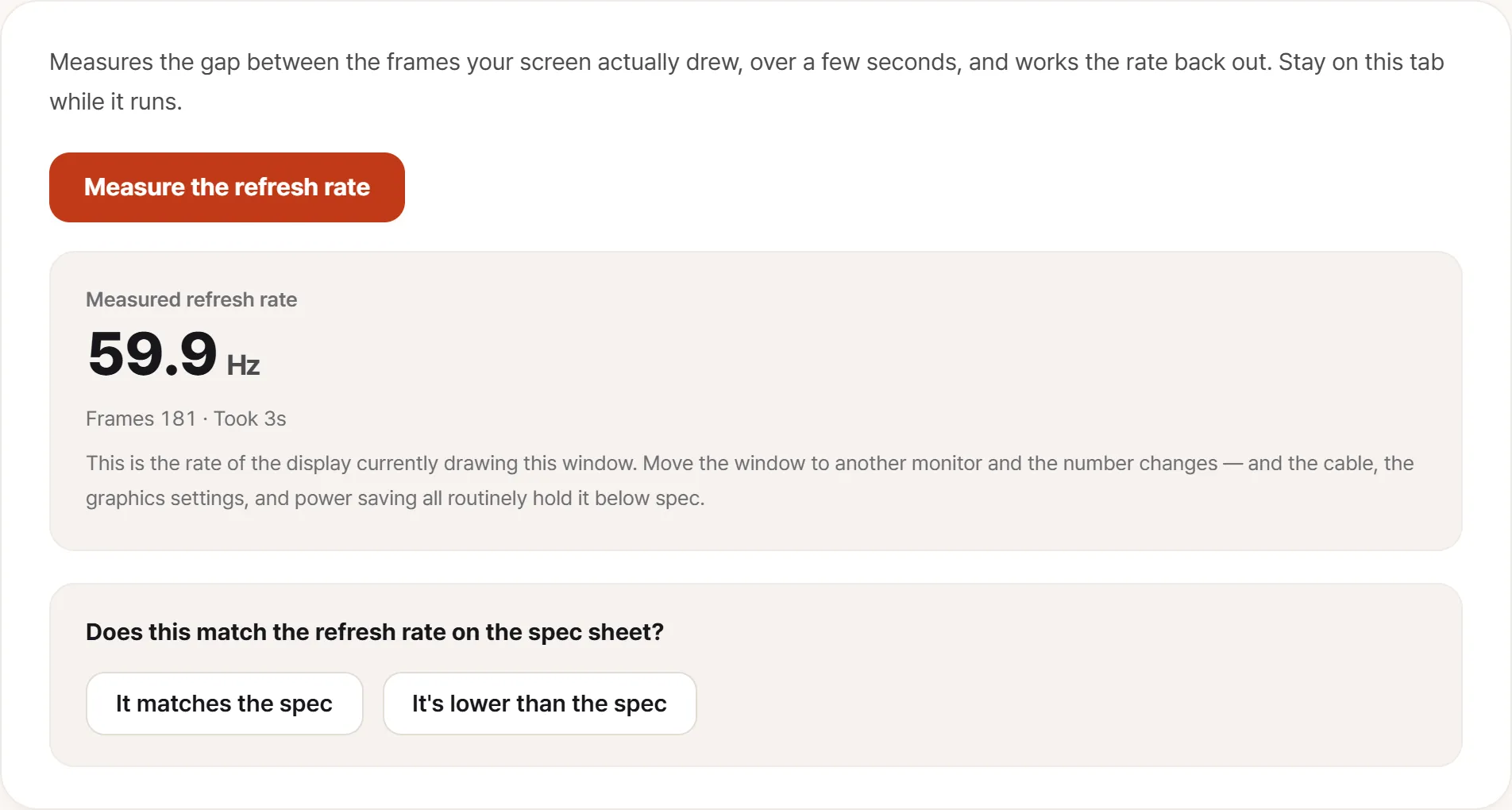
The result reads like this. The large figure is what the screen actually drew; the frame count and duration below it show where that figure came from. Seeing this on a panel sold as 165Hz is what tells you where to start looking.
Two conditions matter while it runs:
- Keep the tab in front. Browsers throttle background tabs hard. Switch windows mid-measurement and you’ll get a nonsense figure like 30Hz or 10Hz.
- Plug a laptop in. Battery-saver profiles routinely drop the panel to a lower rate.
Reading the number
A measured figure won’t match the spec sheet exactly, and that’s fine.
Within 2-3Hz of spec is normal. Browser frame timing jitters slightly, and panel clocks differ from their advertised value by fractions anyway. 142Hz on a 144Hz monitor is not a fault.
Exactly 60Hz is almost never a coincidence. Something in the chain fell back to the safe default. Work through the list below.
Roughly half the spec usually means the cable couldn’t carry the full signal and the monitor stepped down a tier.
Wildly different on each run points at something other than the monitor: heavy background work, a power-saving state, or variable refresh rate on a nearly static page.
When it reads 60Hz, in order
1. Cable and port
The most common cause, and the cheapest to rule out.
HDMI version. HDMI 1.4 cannot carry 1440p at 144Hz or 4K at 120Hz. The cable bundled with a monitor is often an older spec than the monitor itself. High refresh needs HDMI 2.0 or later; 4K at high refresh needs 2.1.
DisplayPort generally has more headroom. If HDMI is capping you, try DP before buying anything.
USB-C / Thunderbolt. Check the port actually carries video. Identical-looking ports on the same machine are sometimes data-only.
Which port on a laptop. On many laptops the HDMI port is wired to the integrated graphics while USB-C goes through the discrete GPU. The port you choose changes the ceiling.
2. Operating system settings
Swapping the cable does not raise the rate on its own. Somebody has to pick the higher value once.
Windows 11. Settings → System → Display → Advanced display. Select the monitor, then set Choose a refresh rate to the highest option. If the top value isn’t listed at all, go back to the cable.
macOS. System Settings → Displays. The refresh rate sits next to the resolution; hold Option while opening it if you don’t see it.
With more than one monitor, set each one separately. Having one at full rate and the other at 60Hz is a common and easy thing to miss.
3. The monitor’s own menu
Plenty of monitors gate their top rate behind an OSD setting, named differently by every manufacturer: Overclock, Overdrive, DP 1.4, HDMI 2.1 mode, Performance. While it’s off, the operating system won’t even offer the highest value.
4. Graphics driver
If all three are right and the top rate still isn’t listed, update the display driver. Recently released monitors are the usual case.
Right rate, wrong-looking picture
If the measurement matches the spec but something still looks off, you’re probably looking at a different fault:
- A spot whose color is always wrong → that’s a dead or stuck pixel
- Bright patches along the edges → backlight bleed; check it with a black screen in a properly dark room (backlight bleed guide)
- Long smearing behind fast movement → response time and overdrive, which is a separate specification from refresh rate
What this tool does and doesn’t tell you
It counts frames the browser painted. That makes it a measurement of the refresh rate the browser is getting. That’s usually the same as everything else on the machine, but it isn’t a guarantee about a full-screen game, particularly on systems where the browser is pinned to one graphics device.
It also doesn’t judge. You get the measured number; whether it matches what you bought is a question for whoever knows what you bought.