

A flickering screen looks like a dying panel, so that’s what most people replace first. But the image passes through three layers before it reaches your eyes (the panel that emits light, the cable and port that carry the signal, and the GPU and driver that draw it), and flicker can originate in any of them.
Skip the step that identifies the layer and you end up swapping cables, then reinstalling drivers, then wondering whether it was ever fixed. This guide is that step.
Note that a static display problem is a different subject: individual points belong in dead pixels, retained patterns in burn-in, and frames not arriving at the rated speed in refresh rate. This one is about a display that won’t hold still.
Two kinds that aren’t faults
PWM dimming. Many displays don’t reduce brightness by making the backlight dimmer. They switch it off and on very rapidly, and set brightness by the ratio of on-time to off-time. So the screen genuinely is flickering, by design. Most people never notice; some get eye strain or headaches from it, and it gets worse as you lower the brightness, because the off periods get longer.
There’s a way to see it. In a dark room, wave a pencil quickly in front of the screen. If you see a series of separate, sharply cut copies of the pencil, that’s PWM. A smooth continuous blur means it isn’t. Repeat at maximum brightness for a clearer comparison.
If it’s PWM, nothing is broken. It’s how that display was designed. The available responses are to run it brighter, or to check for a flicker-free rating on the next one.
Banding that appears only on camera. Photograph a screen with a phone and horizontal bands roll through the image. This is almost always interference between the camera’s shutter and the display’s own scanning, not a display fault. If it looks fine to your eyes, it is fine. People do submit these videos as evidence of a defect, and it’s the first thing a service desk rules out.
Four observations that isolate the layer
This is the part worth doing before anything else. Each answer eliminates roughly a third of the possibilities.
Does it flicker before the OS loads? Check the boot screen or firmware setup. Flicker there means drivers and software are eliminated: you’re looking at hardware or cabling. Clean boot screen followed by a flickering desktop points the other way.
With an external monitor connected, which display flickers? Only the laptop panel: that panel or the cable running through the hinge. Only the external: cable, port, or monitor. Both: the GPU or its driver.
Does safe mode stop it? Safe mode loads a basic display driver only. If flicker disappears there, it’s the graphics driver or a background application.
Does it happen in one application only? A browser or single program flickering on its own usually means hardware acceleration. Turn acceleration off in that application’s settings and you’ll know within seconds.
When it’s the laptop’s own screen
Change the lid angle slowly. Flicker or dropout at specific angles points at the video cable that runs through the hinge. That cable gets flexed every time the machine opens, and it’s one of the more common wiring failures in a laptop.
Press gently around the bezel. Color or brightness that changes under pressure indicates the panel connection.
Compare on battery and on charger. Behavior that differs by power source implicates the power circuitry or the adapter. Cheap third-party adapters do cause this.
Check adaptive brightness. An ambient light sensor hunting up and down under artificial lighting reads as flicker and is not a fault. The same goes for automatic HDR switching and battery-saver brightness adaptation. All can be turned off.
Anything that survives those four is panel or board level, and beyond what you can address yourself.
When it’s an external monitor
Swap the cable first. It’s the cheapest test available, and the cable supplied in the monitor’s box is frequently the minimum spec that will work at all.
Cable length. Beyond about three metres, high resolutions and high refresh rates get unreliable. The symptom is intermittent black flashes rather than continuous flicker.
If it only flickers at high refresh rates, it’s a bandwidth limit. Step the refresh rate down and find where it stops. That value tells you what the cable and port actually sustain, and from there the cable and port specification section of how to check a monitor’s refresh rate applies directly.
Bypass hubs and docks. Multiple devices sharing bandwidth through one connection is a common source of dropped frames and black flashes. Connect the monitor directly and compare.
Look at cable routing. A video cable run alongside a power cable for any distance picks up interference. Moving it is sometimes the entire fix.
Check overdrive in the monitor’s menu. Set too aggressively, it produces bright trailing edges behind moving objects (inverse ghosting), which people often report as flicker. Drop it one level.
If it’s tearing rather than flicker
A horizontal split where the top and bottom of the screen disagree is a different phenomenon. The display refreshed partway through drawing a frame, so it’s showing two moments at once. That’s tearing.
It isn’t a fault, it’s a synchronisation setting. Enabling V-Sync fixes it, and variable refresh rate (G-Sync or FreeSync) fixes it without the latency cost if the monitor supports it.
One thing worth knowing: brightness genuinely does wobble on variable refresh rate displays during low-framerate scenes. As the refresh rate swings, backlight behavior lags behind it, and the effect is most visible in dark content. It’s a panel characteristic, and warranty claims about it usually come back marked normal. If it bothers you, disabling VRR or raising the minimum framerate are the practical options.
A browser cannot measure flicker
Worth being clear about. The refresh rate test above counts frames the browser painted. It has no view of how many times the backlight switched off, because flicker happens in how the panel produces light, a layer below anything a web page can reach.
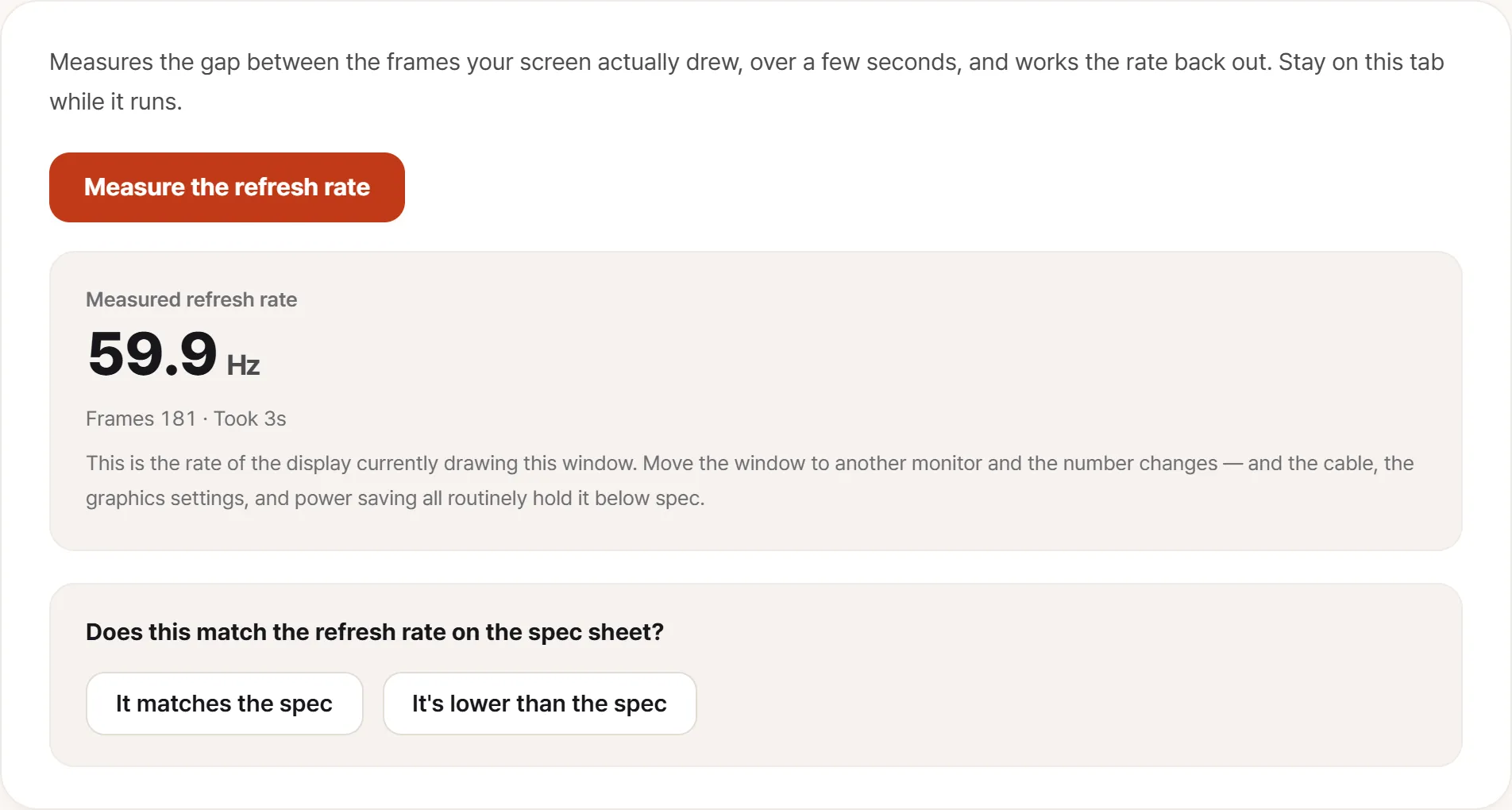
This figure is as far as the tool goes. It can’t see the flicker itself, but it can tell you the refresh rate is running below spec, and the two do arrive together often enough to be worth checking.
The tool has exactly one job in this guide: if flicker only appears at high refresh rates, step down through the rates and find where it stops. That number is the real capability of your cable and port combination.
The dead pixel tool’s solid fields help as a secondary aid. A plain white screen removes everything else from view, which makes brightness instability much easier to judge by eye.
What to bring to a service desk
Flicker that can’t be reproduced at the counter gets marked normal. These change that:
- What happened on the boot screen, in safe mode, and on an external monitor. Three lines that pin down the layer
- Rate and duration: several times a second, or a momentary blackout every few minutes
- Under what conditions: a specific brightness, a specific application, while charging, at a particular lid angle
- A video, but describe what your eyes saw alongside it, so nobody dismisses it as camera banding. “The video shows bands, but to the eye the whole screen dims for an instant” is the sentence that prevents that
- When it started, and whether a driver update or a drop came first